
You know that moment – the instructor finally explains the one thing you have been stuck on all week, and for a few seconds everything clicks. Then the session ends, the tab closes, and the explanation is gone. You try to reconstruct it from memory and your hurried notes, but it is not quite the same.
If you take online courses, tutoring sessions, or live workshops, you have probably felt this more than once. A recording lets you pause, rewind, and revisit the parts that matter – without asking the teacher to repeat everything.
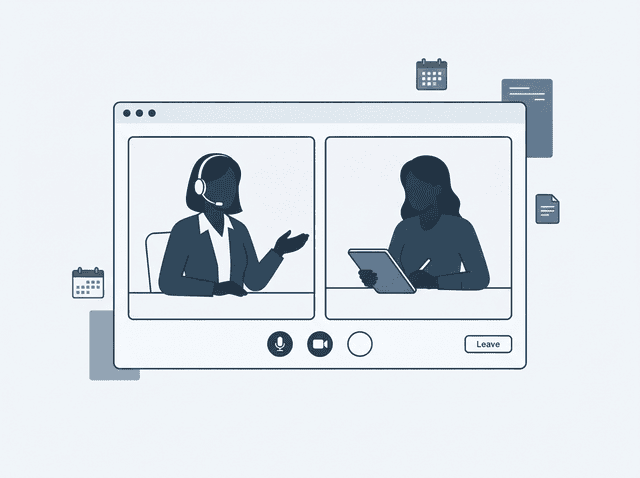
Why record and keep your lessons?
Live classes move fast. Your notes capture highlights, but a recording keeps the full explanation – the examples, the asides, the way a teacher phrases something that finally makes sense. That is worth keeping.
- Review on your schedule – pause, rewind, and rewatch the parts you need, as many times as you want.
- Fill in the gaps – catch details you missed while you were typing notes or thinking through a problem.
- Prepare for exams and projects – build a personal library of lessons you can search through before a test or deadline.
- Reduce pressure during class – focus on understanding in the moment, knowing you can go back later.
- Keep what platforms do not save – many live sessions are not recorded by the school or instructor. Your copy is yours to keep.
- Unlock transcripts and AI study tools – a saved recording is the starting point for text summaries, flashcards, and deeper analysis.
You do not need to record every session. Even keeping the lessons that matter most – a tricky unit, a Q&A before an exam, a workshop you paid for – makes a real difference over a semester.
App or browser? It makes a difference
Many platforms let you join a class two ways: through a desktop or mobile app (Zoom, Teams, Google Meet, and others), or through your web browser on a normal website.
Meeting Recording is a browser extension. It captures audio (and optionally video) from the web page you have open in Chrome. That means:
- Join via the website – open the meeting link in Chrome, join the call in the browser tab, and you are ready to record.
- Join via the app – the call runs outside the browser, so the extension has nothing to attach to. Switch to the web version instead.
This is not a limitation of your course platform – it is simply how browser extensions work. They need a web page to work with.
Works on any tab in your browser
Once you are in the browser, you do not need to worry about compatibility. The extension records from whatever tab is playing the call – a Zoom web client, Google Meet, Microsoft Teams in the browser, a live session on Coursera or Udemy, a tutoring call on any site, or a custom school portal.
If you can hear the lesson in a Chrome tab, you can record it. No special integration, no list of supported platforms to check.
How to record a lesson
Install the Meeting Recording extension, open your course call in Chrome (not the app), click the extension icon, and choose Start audio recording or Start video recording. When the session ends, stop the recording – the file saves to your Downloads folder.
For step-by-step instructions and troubleshooting, see our How to Use guide.
After the recording: transcribe and learn with AI
A recording is useful on its own, but the real magic often starts when you turn speech into text. Once you have a transcript, you can search it, highlight key passages, and ask an AI assistant to help you study. ChatGPT can transcribe your file directly – no extra tools required.
Transcribe with ChatGPT
Upload the recording from your Downloads folder and ask ChatGPT to turn it into text. You can use the same chat for follow-up questions afterwards.
- Open ChatGPT and start a new chat.
- Click the attachment icon (paperclip) in the message box.
- Upload your recording file from the Downloads folder (audio or video – whichever the extension saved).
- Type a prompt such as: “Transcribe this lesson recording. Keep the speaker labels if you can tell them apart.”
- Wait for the transcript. Copy it to a document, or keep working in the same chat.
- Skim the result and fix any names or technical terms the model got wrong.
File upload may require a paid ChatGPT plan, and very long recordings can hit size limits. If a file is too large, trim it to the section you need or try Whisper or Otter as alternatives.
Ideas for analyzing with AI
In the same ChatGPT chat (or any assistant you prefer), use the transcript to go further. You do not need a perfect transcript – good-enough text is usually fine.
Understand the material
- “Summarize this lesson in five bullet points for quick review.”
- “Explain [topic from the lesson] in simpler terms, with an everyday example.”
- “What were the three most important ideas the instructor emphasized?”
- “List terms and definitions mentioned in this lesson.”
Prepare for exams and assignments
- “Create ten flashcard questions with answers based on this transcript.”
- “Write a practice quiz – mix of multiple choice and short answer.”
- “What topics from this lesson might appear on an exam? Rank by likelihood.”
- “Turn the homework discussed at the end into a checklist with deadlines.”
Stay organized across sessions
- “What should I do before the next class?”
- “Extract all action items and open questions from this session.”
- “Compare this lesson with [paste an earlier transcript] – what is new?”
- “Break this long session into timed sections with short titles.”
Treat the AI as a study partner, not a source of truth. Cross-check facts against your notes, slides, and the recording itself – especially before an exam. You stay in control: the recording stays on your computer, and you choose what to upload or share.
Before you record: Make sure recording is allowed for your course and complies with local rules. Our guide on call recording laws has a practical overview. When in doubt, ask your instructor.
We are here to help
Learning online should not mean losing the best moments of a lesson. If you have questions about setup or run into something unexpected, reach out to us – we are happy to help.